mirror of
https://github.com/browseros-ai/BrowserOS.git
synced 2026-05-18 11:06:19 +00:00

417 lines
16 KiB
Plaintext
417 lines
16 KiB
Plaintext
---
|
|
title: "MCP Clients (Claude Code, OpenClaw)"
|
|
description: "Control your browser and 40+ apps from Claude Code, OpenClaw, Gemini CLI, or any MCP client"
|
|
---
|
|
|
|
BrowserOS is the best browser for AI coding agents. It comes with a built-in MCP server that gives your AI agent **full browser control** and **direct access to 40+ external services** — Gmail, Slack, GitHub, Google Calendar, Linear, Notion, and more — all through a single MCP connection.
|
|
|
|
<Note>
|
|
Unlike Chrome DevTools MCP which requires setting up debug profiles and running separate servers, BrowserOS MCP works out of the box. Just copy the URL from settings and connect.
|
|
</Note>
|
|
|
|
## Why Use BrowserOS with Claude Code?
|
|
|
|
<CardGroup cols={2}>
|
|
<Card title="Agentic Coding" icon="code">
|
|
Claude tests your web app, reads console errors, and fixes the code — all in one loop.
|
|
</Card>
|
|
<Card title="40+ App Integrations" icon="grid-2">
|
|
Gmail, Slack, GitHub, Jira, Notion, Google Sheets, and more — accessible directly from your AI agent.
|
|
</Card>
|
|
<Card title="Data Extraction" icon="download">
|
|
Extract your LinkedIn profile, tweets, or any authenticated page content.
|
|
</Card>
|
|
<Card title="Task Automation" icon="repeat">
|
|
Fill forms, navigate multi-step workflows, and automate repetitive browser tasks.
|
|
</Card>
|
|
<Card title="53+ MCP Tools" icon="wrench">
|
|
Full browser control: tabs, navigation, clicks, typing, screenshots, bookmarks, history, tab groups, and window management.
|
|
</Card>
|
|
<Card title="Zero Config Auth" icon="lock">
|
|
Connect external services via OAuth — credentials are managed securely, never stored in BrowserOS.
|
|
</Card>
|
|
</CardGroup>
|
|
|
|
<Tip>
|
|
Wondering how BrowserOS MCP compares to Chrome DevTools MCP or other browser automation tools? See our [detailed feature comparison](/comparisons/chrome-devtools-mcp) covering 53 browser tools, 40+ app integrations, and why BrowserOS MCP gives developers more out of the box.
|
|
</Tip>
|
|
|
|
## Getting Started
|
|
|
|
<Steps>
|
|
<Step title="Open BrowserOS Settings">
|
|
Navigate to `chrome://browseros/mcp` or click **Settings** → **BrowserOS as MCP** in the sidebar.
|
|
</Step>
|
|
<Step title="Copy the MCP URL">
|
|
Copy the Server URL shown on the page (e.g., `http://127.0.0.1:9239/mcp`).
|
|
|
|
<img src="/images/features--browseros-mcp-settings.png" alt="BrowserOS MCP settings page showing Server URL" />
|
|
</Step>
|
|
<Step title="Connect your MCP client">
|
|
Use the tabs below to connect your preferred client.
|
|
</Step>
|
|
</Steps>
|
|
|
|
<Tabs>
|
|
<Tab title="Claude Code">
|
|
Add BrowserOS to Claude Code:
|
|
```bash
|
|
claude mcp add --transport http browseros <mcp_url> --scope user
|
|
# Example: claude mcp add --transport http browseros http://127.0.0.1:9239/mcp --scope user
|
|
```
|
|
|
|
Start Claude Code and try it:
|
|
```bash
|
|
claude
|
|
> Open amazon.com in BrowserOS
|
|
```
|
|
|
|
<Tip>
|
|
Run `claude --dangerously-skip-permissions` to skip confirmation prompts for each browser action.
|
|
</Tip>
|
|
|
|
To remove later:
|
|
```bash
|
|
claude mcp remove browseros --scope user
|
|
```
|
|
</Tab>
|
|
<Tab title="Gemini CLI">
|
|
Add BrowserOS to Gemini CLI:
|
|
```bash
|
|
gemini mcp add local-server <mcp_url> --transport http --scope user
|
|
# Example: gemini mcp add local-server http://127.0.0.1:9239/mcp --transport http --scope user
|
|
```
|
|
</Tab>
|
|
<Tab title="Codex">
|
|
Add BrowserOS to OpenAI Codex CLI:
|
|
```bash
|
|
codex mcp add browseros <mcp_url> --transport http
|
|
# Example: codex mcp add browseros http://127.0.0.1:9239/mcp --transport http
|
|
```
|
|
</Tab>
|
|
<Tab title="OpenClaw">
|
|
Add BrowserOS to [OpenClaw](https://openclaw.ai/) by adding it to the `mcpServers` section in your `openclaw.json` config file:
|
|
```json
|
|
{
|
|
"mcpServers": {
|
|
"browseros": {
|
|
"url": "http://127.0.0.1:9239/mcp"
|
|
}
|
|
}
|
|
}
|
|
```
|
|
|
|
Replace the URL with your BrowserOS MCP URL from settings.
|
|
</Tab>
|
|
<Tab title="Claude Desktop">
|
|
Open your Claude Desktop config file:
|
|
```
|
|
~/Library/Application Support/Claude/claude_desktop_config.json
|
|
```
|
|
|
|
Add BrowserOS:
|
|
```json
|
|
{
|
|
"mcpServers": {
|
|
"browserOS": {
|
|
"command": "npx",
|
|
"args": ["mcp-remote", "http://127.0.0.1:9239/mcp"]
|
|
}
|
|
}
|
|
}
|
|
```
|
|
|
|
Restart Claude Desktop to connect.
|
|
</Tab>
|
|
</Tabs>
|
|
|
|
## Example Prompts
|
|
|
|
<Accordion title="Try these prompts once connected" icon="message">
|
|
Extract structured data from any page you're logged into — no scraping setup needed.
|
|
```
|
|
Open my LinkedIn profile in BrowserOS and extract my work experience as JSON
|
|
```
|
|
|
|
Test your web app end-to-end without leaving the terminal — Claude navigates, interacts, and reports errors back.
|
|
```
|
|
In BrowserOS, go to localhost:3000, click the login button, and check for console errors
|
|
```
|
|
|
|
Capture visual snapshots of any page for debugging, documentation, or design review.
|
|
```
|
|
Take a screenshot of the current page in BrowserOS and save it to screenshots/
|
|
```
|
|
|
|
Search through your real browsing history to find pages you visited earlier.
|
|
```
|
|
Search my BrowserOS history for "invoice" and list the recent matches
|
|
```
|
|
|
|
Access your email directly from the agent — read, search, and summarize without switching windows.
|
|
```
|
|
Read my latest Gmail messages and summarize them
|
|
```
|
|
|
|
Chain multiple services together in a single prompt — file issues, notify your team, and stay in flow.
|
|
```
|
|
Create a Linear issue for the bug I just found and post a summary to Slack
|
|
```
|
|
</Accordion>
|
|
|
|
---
|
|
|
|
## Browser Automation Tools
|
|
|
|
BrowserOS exposes **53 browser automation tools** to MCP clients, organized into the following categories:
|
|
|
|
<AccordionGroup>
|
|
<Accordion title="Navigation & Tabs (8 tools)" icon="window-restore">
|
|
| Tool | Description |
|
|
|------|-------------|
|
|
| `get_active_page` | Get the currently focused page/tab |
|
|
| `list_pages` | List all open pages with title, URL, and tab ID |
|
|
| `navigate_page` | Navigate to a URL, or go back/forward/reload |
|
|
| `new_page` | Open a new tab (with optional background/hidden mode) |
|
|
| `new_hidden_page` | Open a hidden tab for background automation |
|
|
| `show_page` | Restore a hidden page to visible state |
|
|
| `move_page` | Move a tab to a different window or position |
|
|
| `close_page` | Close a tab |
|
|
</Accordion>
|
|
|
|
<Accordion title="Content & Observation (8 tools)" icon="eye">
|
|
| Tool | Description |
|
|
|------|-------------|
|
|
| `take_snapshot` | Get accessibility tree with interactive element IDs |
|
|
| `take_enhanced_snapshot` | Detailed accessibility tree with structural context |
|
|
| `get_page_content` | Extract page as clean Markdown (headers, links, tables) |
|
|
| `get_page_links` | Extract all links from a page with deduplication |
|
|
| `get_dom` | Get raw HTML DOM with optional CSS selector scoping |
|
|
| `search_dom` | Search DOM by text, CSS selector, or XPath |
|
|
| `take_screenshot` | Capture page screenshot (PNG/JPEG/WebP, full-page option) |
|
|
| `evaluate_script` | Execute JavaScript in the page context |
|
|
</Accordion>
|
|
|
|
<Accordion title="Interaction & Input (14 tools)" icon="hand-pointer">
|
|
| Tool | Description |
|
|
|------|-------------|
|
|
| `click` | Click an element by ID from snapshot |
|
|
| `click_at` | Click at specific X,Y coordinates |
|
|
| `hover` | Hover over an element |
|
|
| `focus` | Focus an element (scrolls into view) |
|
|
| `fill` | Type text into an input (with optional clear) |
|
|
| `clear` | Clear text from input/textarea |
|
|
| `check` | Check a checkbox or radio button |
|
|
| `uncheck` | Uncheck a checkbox |
|
|
| `select_option` | Select a dropdown option by value or text |
|
|
| `press_key` | Press a key or key combination (Enter, Ctrl+A, etc.) |
|
|
| `drag` | Drag an element to another element or coordinates |
|
|
| `scroll` | Scroll page or element (up/down/left/right) |
|
|
| `upload_file` | Upload files to a file input element |
|
|
| `handle_dialog` | Accept or dismiss JavaScript dialogs |
|
|
</Accordion>
|
|
|
|
<Accordion title="File & Export (3 tools)" icon="file-export">
|
|
| Tool | Description |
|
|
|------|-------------|
|
|
| `save_pdf` | Print current page to a PDF file |
|
|
| `save_screenshot` | Capture and save a screenshot to disk |
|
|
| `download_file` | Click an element to trigger a download and save it |
|
|
</Accordion>
|
|
|
|
<Accordion title="Window Management (5 tools)" icon="window-maximize">
|
|
| Tool | Description |
|
|
|------|-------------|
|
|
| `list_windows` | List all browser windows |
|
|
| `create_window` | Create a new browser window |
|
|
| `create_hidden_window` | Create a hidden window for background tasks |
|
|
| `close_window` | Close a window by ID |
|
|
| `activate_window` | Focus and activate a window |
|
|
</Accordion>
|
|
|
|
<Accordion title="Tab Groups (5 tools)" icon="layer-group">
|
|
| Tool | Description |
|
|
|------|-------------|
|
|
| `list_tab_groups` | List all tab groups |
|
|
| `group_tabs` | Create a tab group with optional title and color |
|
|
| `update_tab_group` | Update group title, color, or collapsed state |
|
|
| `ungroup_tabs` | Remove tabs from groups |
|
|
| `close_tab_group` | Close a group and all its tabs |
|
|
</Accordion>
|
|
|
|
<Accordion title="Bookmarks (6 tools)" icon="bookmark">
|
|
| Tool | Description |
|
|
|------|-------------|
|
|
| `get_bookmarks` | List all bookmarks |
|
|
| `create_bookmark` | Create a bookmark or folder |
|
|
| `remove_bookmark` | Delete a bookmark or folder |
|
|
| `update_bookmark` | Update bookmark title or URL |
|
|
| `move_bookmark` | Move a bookmark to a different folder |
|
|
| `search_bookmarks` | Search bookmarks by title or URL |
|
|
</Accordion>
|
|
|
|
<Accordion title="History (4 tools)" icon="clock-rotate-left">
|
|
| Tool | Description |
|
|
|------|-------------|
|
|
| `search_history` | Search browser history by text query |
|
|
| `get_recent_history` | Get the most recent history items |
|
|
| `delete_history_url` | Delete a specific URL from history |
|
|
| `delete_history_range` | Delete history within a time range |
|
|
</Accordion>
|
|
</AccordionGroup>
|
|
|
|
---
|
|
|
|
## 40+ External App Integrations
|
|
|
|
BrowserOS connects your AI agent directly to the tools you already use — no separate MCP servers to install or configure. Everything is accessible through the same BrowserOS MCP connection.
|
|
|
|
### How It Works
|
|
|
|
<Steps>
|
|
<Step title="Agent calls an external service tool">
|
|
Your AI agent calls a tool like `gmail_search_messages` through the BrowserOS MCP.
|
|
</Step>
|
|
<Step title="OAuth login (first time only)">
|
|
If this is your first time using that service, BrowserOS opens an OAuth login page in the browser. Log in and authorize access.
|
|
</Step>
|
|
<Step title="Tool executes and returns results">
|
|
Once authenticated, the tool runs and returns results to your agent. Future calls to the same service work automatically — no re-authentication needed.
|
|
</Step>
|
|
</Steps>
|
|
|
|
<Note>
|
|
Your credentials are managed securely via OAuth and are **never stored in BrowserOS**. Tokens are refreshed transparently, and you can revoke access at any time from the service provider.
|
|
</Note>
|
|
|
|
### Supported Services
|
|
|
|
<AccordionGroup>
|
|
<Accordion title="Email" icon="envelope">
|
|
| Service | What you can do |
|
|
|---------|----------------|
|
|
| **Gmail** | Send, read, search emails, manage drafts and labels |
|
|
| **Outlook Mail** | Send, read, and manage emails |
|
|
| **Resend** | Send transactional and marketing emails |
|
|
</Accordion>
|
|
|
|
<Accordion title="Calendar & Scheduling" icon="calendar">
|
|
| Service | What you can do |
|
|
|---------|----------------|
|
|
| **Google Calendar** | Create events, find free time, manage calendars |
|
|
| **Outlook Calendar** | Schedule meetings, manage events |
|
|
| **Cal.com** | Schedule meetings, manage availability |
|
|
</Accordion>
|
|
|
|
<Accordion title="Communication" icon="comments">
|
|
| Service | What you can do |
|
|
|---------|----------------|
|
|
| **Slack** | Post messages, manage channels |
|
|
| **Discord** | Send messages, manage servers |
|
|
| **WhatsApp** | Send messages, manage conversations |
|
|
| **Microsoft Teams** | Chat, meet, and collaborate |
|
|
</Accordion>
|
|
|
|
<Accordion title="Development" icon="code">
|
|
| Service | What you can do |
|
|
|---------|----------------|
|
|
| **GitHub** | Manage repos, issues, and pull requests |
|
|
| **GitLab** | Manage repos, issues, and merge requests |
|
|
| **Vercel** | Deploy and manage web applications |
|
|
| **Postman** | Test and manage APIs |
|
|
| **Cloudflare** | Manage domains, DNS, and security |
|
|
| **Supabase** | Manage databases and backend services |
|
|
</Accordion>
|
|
|
|
<Accordion title="Project Management" icon="list-check">
|
|
| Service | What you can do |
|
|
|---------|----------------|
|
|
| **Linear** | Create issues, manage cycles and projects |
|
|
| **Jira** | Create issues, manage sprints |
|
|
| **Asana** | Organize and track team projects |
|
|
| **Monday** | Manage work and team collaboration |
|
|
| **ClickUp** | Manage tasks, projects, and workflows |
|
|
</Accordion>
|
|
|
|
<Accordion title="Productivity & Docs" icon="file-lines">
|
|
| Service | What you can do |
|
|
|---------|----------------|
|
|
| **Notion** | Create pages, manage databases |
|
|
| **Google Docs** | Create and edit documents |
|
|
| **Google Sheets** | Create and edit spreadsheets |
|
|
| **Google Drive** | Upload, download, and manage files |
|
|
| **Google Forms** | Create and manage forms and surveys |
|
|
| **Confluence** | Create and manage documentation |
|
|
| **Airtable** | Manage bases, tables, and records |
|
|
</Accordion>
|
|
|
|
<Accordion title="File Storage" icon="folder-open">
|
|
| Service | What you can do |
|
|
|---------|----------------|
|
|
| **Dropbox** | Store and share files |
|
|
| **OneDrive** | Store and sync files with Microsoft |
|
|
| **Box** | Manage and share enterprise files |
|
|
</Accordion>
|
|
|
|
<Accordion title="Design" icon="pen-ruler">
|
|
| Service | What you can do |
|
|
|---------|----------------|
|
|
| **Figma** | Access and manage design files |
|
|
| **Canva** | Create and manage designs |
|
|
</Accordion>
|
|
|
|
<Accordion title="CRM & Marketing" icon="chart-line">
|
|
| Service | What you can do |
|
|
|---------|----------------|
|
|
| **Salesforce** | Manage leads, contacts, and opportunities |
|
|
| **HubSpot** | Manage contacts, deals, and marketing |
|
|
</Accordion>
|
|
|
|
<Accordion title="E-commerce & Payments" icon="cart-shopping">
|
|
| Service | What you can do |
|
|
|---------|----------------|
|
|
| **Shopify** | Manage products, orders, and store |
|
|
| **Stripe** | Manage payments and subscriptions |
|
|
</Accordion>
|
|
|
|
<Accordion title="Analytics" icon="chart-bar">
|
|
| Service | What you can do |
|
|
|---------|----------------|
|
|
| **PostHog** | Query analytics, manage feature flags |
|
|
| **Mixpanel** | Analyze user behavior and metrics |
|
|
</Accordion>
|
|
|
|
<Accordion title="Support" icon="headset">
|
|
| Service | What you can do |
|
|
|---------|----------------|
|
|
| **Zendesk** | Manage support tickets and customers |
|
|
| **Intercom** | Manage customer messaging and support |
|
|
</Accordion>
|
|
|
|
<Accordion title="Search & AI" icon="magnifying-glass">
|
|
| Service | What you can do |
|
|
|---------|----------------|
|
|
| **Brave Search** | Search the web privately |
|
|
| **Exa** | AI-powered semantic web search |
|
|
| **Mem0** | Store and retrieve AI memory |
|
|
</Accordion>
|
|
|
|
<Accordion title="Social" icon="share-nodes">
|
|
| Service | What you can do |
|
|
|---------|----------------|
|
|
| **LinkedIn** | Post updates, manage connections |
|
|
| **YouTube** | Access video info and transcripts |
|
|
| **WordPress** | Manage websites and blog content |
|
|
</Accordion>
|
|
</AccordionGroup>
|
|
|
|
---
|
|
|
|
## Demo Videos
|
|
|
|
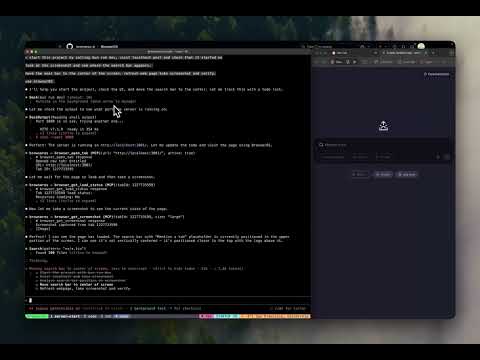
### Agentic coding workflow
|
|
[](https://youtu.be/vcSxzIIkg_0)
|
|
|
|
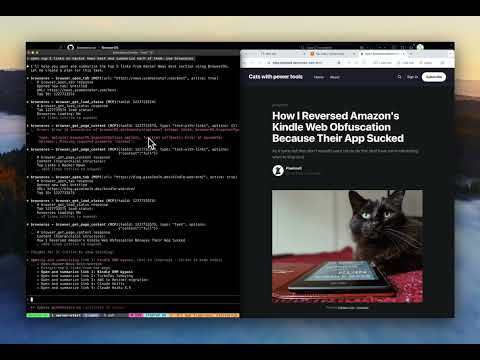
### Browser automation with Claude Code
|
|
[](https://youtu.be/rPFx_Btajj0)
|